Color: Difference between revisions
m high-intensity -> bright |
No edit summary |
||
| (5 intermediate revisions by 2 users not shown) | |||
| Line 1: | Line 1: | ||
The ZZT engine uses the color text mode of the IBM PC. As such, by default, the world format supports 16 foreground colors and 8 background colors. In addition, the color can optionally be marked as blinking, in which case the foreground character appears and disappears at a hardware-specific rate (typically every 32 frames). | |||
== Color palette == | |||
The canon ZZT palette as used by the community matches the official definition of these colors as used on EGA and later adapters: | |||
(TODO: Some kind of swatch?) | |||
=== Dark | However, the engine does not guarantee these colors anywhere - it relies on the palette provided by the graphics adapter, emulator or engine port. As such, some notable variants exist: | ||
* The official IBM 5153 color monitor has a different palette in practice<ref>VileR. (2022, June). [https://int10h.org/blog/2022/06/ibm-5153-color-true-cga-palette/ The IBM 5153's True CGA Palette and Color Output]</ref>. While not common among ZZTers, this may have been the monitor used by the IBM PC configuration ZZT was developed on<ref>Sweeney, Tim. (2019, January 8). ''[https://x.com/TimSweeneyEpic/status/1082454622831370240 Honestly nobody has beaten IBM’s PC AT keyboard. Can still get them on EBay. Loud as hell though!]'' Twitter.</ref>. | |||
* Some graphics card adapters and monitors did not correctly convert color #6 to brown, instead displaying it as a dark yellow. | |||
* On Windows XP (2000?) using NTVDM, a different palette is used altogether. (TODO) This was a popular platform for interacting with ZZT games throughout the early-mid 2000s. | |||
== Monochrome mode == | |||
ZZT includes a monochrome option, which translates the colors to shades of grey for users of monochrome display adapters. | |||
Unfortunately, in the process of adapting the color translation algorithm to Super ZZT's user interface, it regressed the display of ZZT's worlds and interface. These changes got pulled into the ZZT codebase with version 3.1. | |||
<gallery> | |||
File:STK Breakables Color.png|left|thumb|Super Tool Kit breakable walls in color. | |||
File:STK Breakables Mono30.png|left|thumb|Super Tool Kit breakable walls in monochrome, displayed using ZZT 3.0. | |||
File:STK Breakables Mono32.png|left|thumb|Super Tool Kit breakable walls in monochrome, displayed using ZZT 3.2. | |||
</gallery> | |||
== Accessing additional colors == | |||
In the [[built-in editor]], most of these combinations are not used or only used for built-in elements and thus not exposed to the user. | |||
=== In the editor === | |||
The built-in editor only supports directly editing [[element|elements]] in seven colors: blue, green, cyan, red, purple, yellow and white. These correspond to the seven bright colors in the default 16-color CGA palette. | |||
However, non-standard colors can be used by copying an existing tile of such a color, for example by using a [[toolkit]] board, and placing it on your own board. Alternatively, one can use an [[external editor]], which generally allow use of all supported colors. | |||
=== Using ZZT-OOP === | |||
[[ZZT-OOP]] element [[kind|kind]] statements only support seven named colors: '''blue''', '''green''', '''cyan''', '''red''', '''purple''', '''yellow''' and '''white''', matching the ones available in the [[built-in editor]]. With the exception of [[door|doors]], named colors apply to an element's foreground color, and are paired with a black background. | |||
A handful of additional colors can be obtained through ZZT-OOP by using the [[change]] and [[put]] commands on built-in entities with hard-coded colors. This was most likely first discovered by Tim Gallagher in 1992<ref>Gallagher, Tim. (1992). [https://museumofzzt.com/file/view/timstools/?file=TOOL-KIT.ZZT Tim's Toolkit].</ref>. | |||
Below are examples of how to obtain [[gem|gems]] of various colors using ZZT-OOP. These are also implemented as a demonstration board in the [https://museumofzzt.com/file/m/Mwencv14.zip?file=%24MWENC_B.ZZT&board=7#19,10 Mystical Winds Encyclopedia]. | |||
==== Dark colors on black ==== | |||
===== Brown on black ===== | |||
<code> | <code> | ||
| Line 13: | Line 52: | ||
<nowiki>#</nowiki>change torch gem | <nowiki>#</nowiki>change torch gem | ||
</code> | </code> | ||
''Alternatively:'' | ''Alternatively:'' | ||
| Line 24: | Line 62: | ||
=== Dark cyan on black === | ===== Dark cyan on black ===== | ||
<code> | <code> | ||
| Line 33: | Line 71: | ||
=== Dark purple on black === | ===== Dark purple on black ===== | ||
<code> | <code> | ||
| Line 42: | Line 80: | ||
=== Gray on black === | ===== Gray on black ===== | ||
<code> | <code> | ||
| Line 51: | Line 89: | ||
== Black on dark colors == | ==== Black on dark colors ==== | ||
=== Black on dark green === | ===== Black on dark green ===== | ||
<code> | <code> | ||
<nowiki>#</nowiki>put e [[forest]] | <nowiki>#</nowiki>put e [[forest]] | ||
| Line 61: | Line 99: | ||
=== Black on gray === | ===== Black on gray ===== | ||
<code> | <code> | ||
<nowiki>#</nowiki>put e [[empty]] | <nowiki>#</nowiki>put e [[empty]] | ||
| Line 69: | Line 107: | ||
== White on dark colors == | ==== White on dark colors ==== | ||
=== White on gray === | ===== White on gray ===== | ||
<code> | <code> | ||
| Line 80: | Line 118: | ||
=== White on dark blue === | ===== White on dark blue ===== | ||
<code> | <code> | ||
| Line 89: | Line 127: | ||
=== White on dark green === | ===== White on dark green ===== | ||
<code> | <code> | ||
| Line 98: | Line 136: | ||
=== White on dark red === | ===== White on dark red ===== | ||
<code> | <code> | ||
| Line 107: | Line 145: | ||
=== White on dark purple === | ===== White on dark purple ===== | ||
<code> | <code> | ||
| Line 116: | Line 154: | ||
=== White on brown === | ===== White on brown ===== | ||
<code> | <code> | ||
| Line 125: | Line 163: | ||
== Blinking white on black and dark colors == | ==== Blinking white on black and dark colors ==== | ||
=== Blinking white on black === | ===== Blinking white on black ===== | ||
<code> | <code> | ||
| Line 138: | Line 176: | ||
=== Blinking white on dark cyan === | ===== Blinking white on dark cyan ===== | ||
<code> | <code> | ||
| Line 151: | Line 189: | ||
=== Blinking white on dark purple === | ===== Blinking white on dark purple ===== | ||
<code> | <code> | ||
| Line 162: | Line 200: | ||
=== Blinking white on brown === | ===== Blinking white on brown ===== | ||
<code> | <code> | ||
| Line 173: | Line 211: | ||
=== Blinking white on gray === | ''Alternatively:'' | ||
<code> | |||
<nowiki>#</nowiki>put e bear | |||
<nowiki>#</nowiki>put e door | |||
<nowiki>#</nowiki>change door gem | |||
</code> | |||
''Note'': The bear needs to be crushed by an obstacle when the door is created. | |||
===== Blinking white on gray ===== | |||
<code> | <code> | ||
| Line 185: | Line 236: | ||
== References == | == References == | ||
<references/> | |||
Latest revision as of 15:23, 24 December 2025
The ZZT engine uses the color text mode of the IBM PC. As such, by default, the world format supports 16 foreground colors and 8 background colors. In addition, the color can optionally be marked as blinking, in which case the foreground character appears and disappears at a hardware-specific rate (typically every 32 frames).
Color palette
The canon ZZT palette as used by the community matches the official definition of these colors as used on EGA and later adapters:
(TODO: Some kind of swatch?)
However, the engine does not guarantee these colors anywhere - it relies on the palette provided by the graphics adapter, emulator or engine port. As such, some notable variants exist:
- The official IBM 5153 color monitor has a different palette in practice[1]. While not common among ZZTers, this may have been the monitor used by the IBM PC configuration ZZT was developed on[2].
- Some graphics card adapters and monitors did not correctly convert color #6 to brown, instead displaying it as a dark yellow.
- On Windows XP (2000?) using NTVDM, a different palette is used altogether. (TODO) This was a popular platform for interacting with ZZT games throughout the early-mid 2000s.
Monochrome mode
ZZT includes a monochrome option, which translates the colors to shades of grey for users of monochrome display adapters.
Unfortunately, in the process of adapting the color translation algorithm to Super ZZT's user interface, it regressed the display of ZZT's worlds and interface. These changes got pulled into the ZZT codebase with version 3.1.
-
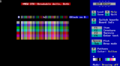 Super Tool Kit breakable walls in color.
 -
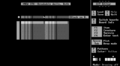 Super Tool Kit breakable walls in monochrome, displayed using ZZT 3.0.
 -
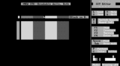 Super Tool Kit breakable walls in monochrome, displayed using ZZT 3.2.


Accessing additional colors
In the built-in editor, most of these combinations are not used or only used for built-in elements and thus not exposed to the user.
In the editor
The built-in editor only supports directly editing elements in seven colors: blue, green, cyan, red, purple, yellow and white. These correspond to the seven bright colors in the default 16-color CGA palette.
However, non-standard colors can be used by copying an existing tile of such a color, for example by using a toolkit board, and placing it on your own board. Alternatively, one can use an external editor, which generally allow use of all supported colors.
Using ZZT-OOP
ZZT-OOP element kind statements only support seven named colors: blue, green, cyan, red, purple, yellow and white, matching the ones available in the built-in editor. With the exception of doors, named colors apply to an element's foreground color, and are paired with a black background.
A handful of additional colors can be obtained through ZZT-OOP by using the change and put commands on built-in entities with hard-coded colors. This was most likely first discovered by Tim Gallagher in 1992[3].
Below are examples of how to obtain gems of various colors using ZZT-OOP. These are also implemented as a demonstration board in the Mystical Winds Encyclopedia.
Dark colors on black
Brown on black
#put e torch
#change torch gem
Alternatively:
#put e bear
#change bear gem
Dark cyan on black
#put e ammo
#change ammo gem
Dark purple on black
#put e energizer
#change energizer gem
Gray on black
#put e shark
#change shark gem
Black on dark colors
Black on dark green
#put e forest
#change forest gem
Black on gray
#put e empty
#put e gem
White on dark colors
White on gray
#put e door
#change door gem
White on dark blue
#put e blue door
#change door gem
White on dark green
#put e green door
#change door gem
White on dark red
#put e red door
#change door gem
White on dark purple
#put e purple door
#change door gem
White on brown
#put e yellow door
#change door gem
Blinking white on black and dark colors
Blinking white on black
#put e forest
#change forest door
#change door gem
Blinking white on dark cyan
#put e ammo
#put e door
#put e gem
Note: The ammo won't automatically be overwritten by the newly-created door. You can delete it with #change ammo empty, or put the object next to an obstacle such that the ammo gets crushed when the door is created.
Blinking white on dark purple
#put e energizer
#put e door
#change door gem
Blinking white on brown
#put e torch
#put e door
#change door gem
Alternatively:
#put e bear
#put e door
#change door gem
Note: The bear needs to be crushed by an obstacle when the door is created.
Blinking white on gray
#put e shark
#put e door
#change door gem
References
- ↑ VileR. (2022, June). The IBM 5153's True CGA Palette and Color Output
- ↑ Sweeney, Tim. (2019, January 8). Honestly nobody has beaten IBM’s PC AT keyboard. Can still get them on EBay. Loud as hell though! Twitter.
- ↑ Gallagher, Tim. (1992). Tim's Toolkit.